Monitoring Imports
Every import creates a job that is queued, runs, and ends with a result. The Audience dashboard shows the status of each job while it runs and the details of the result when it ends. For how to create an import, see the Import Guide.
Import History
The History tab in Collect > Data Imports lists the jobs of all imports, including those started by scheduled and file detection imports.
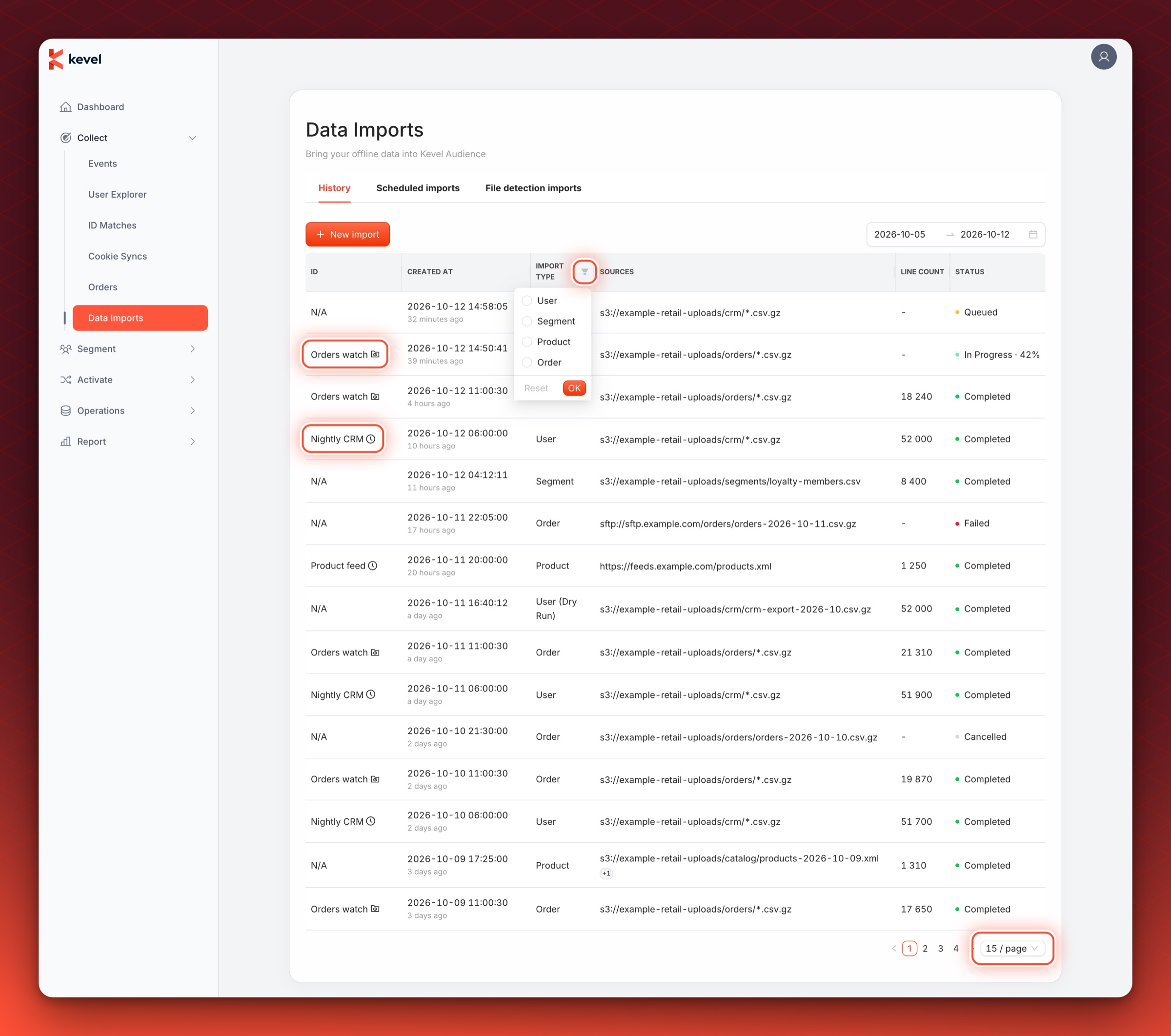
| Column | What it shows |
|---|---|
| ID | The name of the automated import that started the job, and whether it is a scheduled or a file detection import. One-time imports have none. |
| Created At | When the job was created. |
| Import Type | The kind of data the import brings in: users, segments, products or orders. Dry runs are marked as such. |
| Sources | The first source of the import. Folder sources also show the file extension, for example s3://my-bucket/exports/*.csv.gz. When an import has more than one source, only the first is shown here, with a count of the others. Open the job to see all of them. |
| Line count | The number of lines read from the files, once the result is available. It shows - until then. |
| Status | The status of the job. |
The list can be limited to a date range and to one import type, and it refreshes by itself.
Selecting a job opens its details. The Scheduled imports and File detection imports tabs list the automated imports. Selecting one opens its configuration for editing.
Import Status
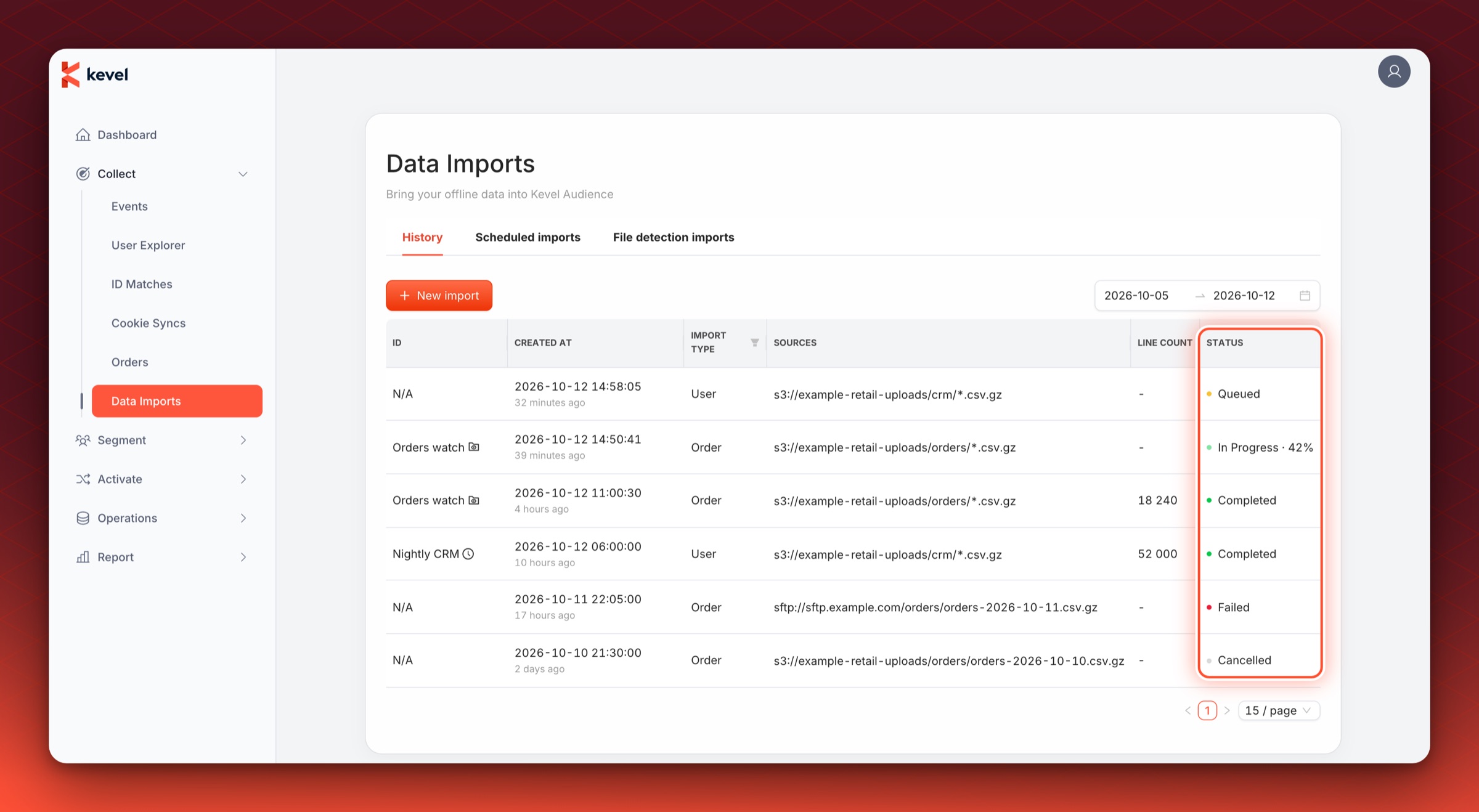
Each job has one of the following statuses.
| Status | Meaning |
|---|---|
| Queued | The job is waiting to start. Audience runs one import at a time, so a job waits while another import is running. |
| In Progress | The job is running. The percentage next to it estimates how much of the data has been read. |
| Completed | The job finished. The details show how many lines were imported and which issues were found. |
| Failed | The job stopped because of an error, which is shown in the details. |
| Cancelled | The job was canceled before it finished. |
Import Details
Selecting a job in the history opens a page with its details. For jobs started by an automated import, the page also shows the name of that import. The image below shows a running folder import.
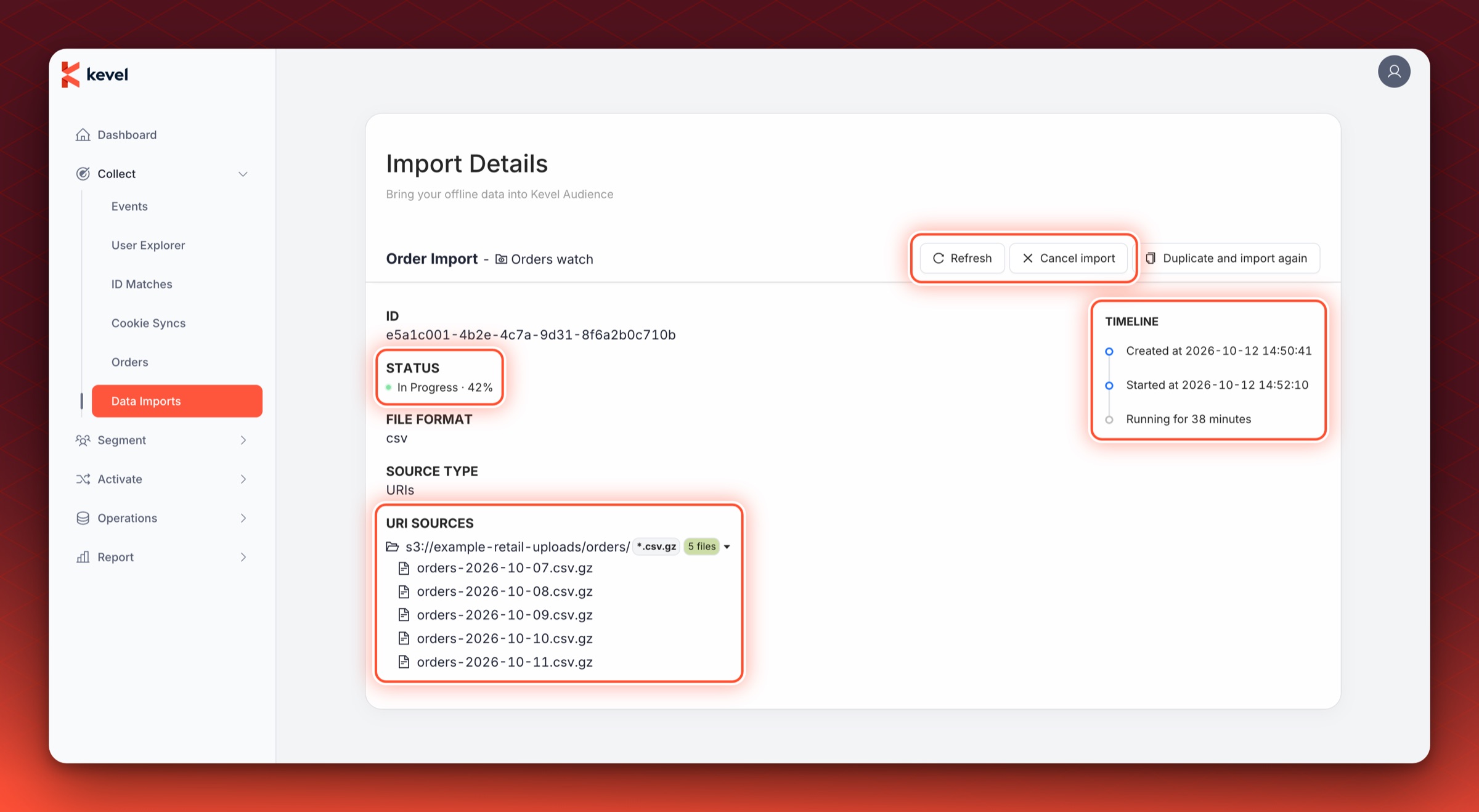
The page shows the following.
- ID and Status of the job.
- File format and URI sources. Each folder source shows the number of files selected for the import, and the file names can be expanded.
- A Timeline of when the job was created, started and ended, with the time it spent queued and running.
- Warnings and, for completed jobs, the results. For failed jobs, the error message is shown under Error.
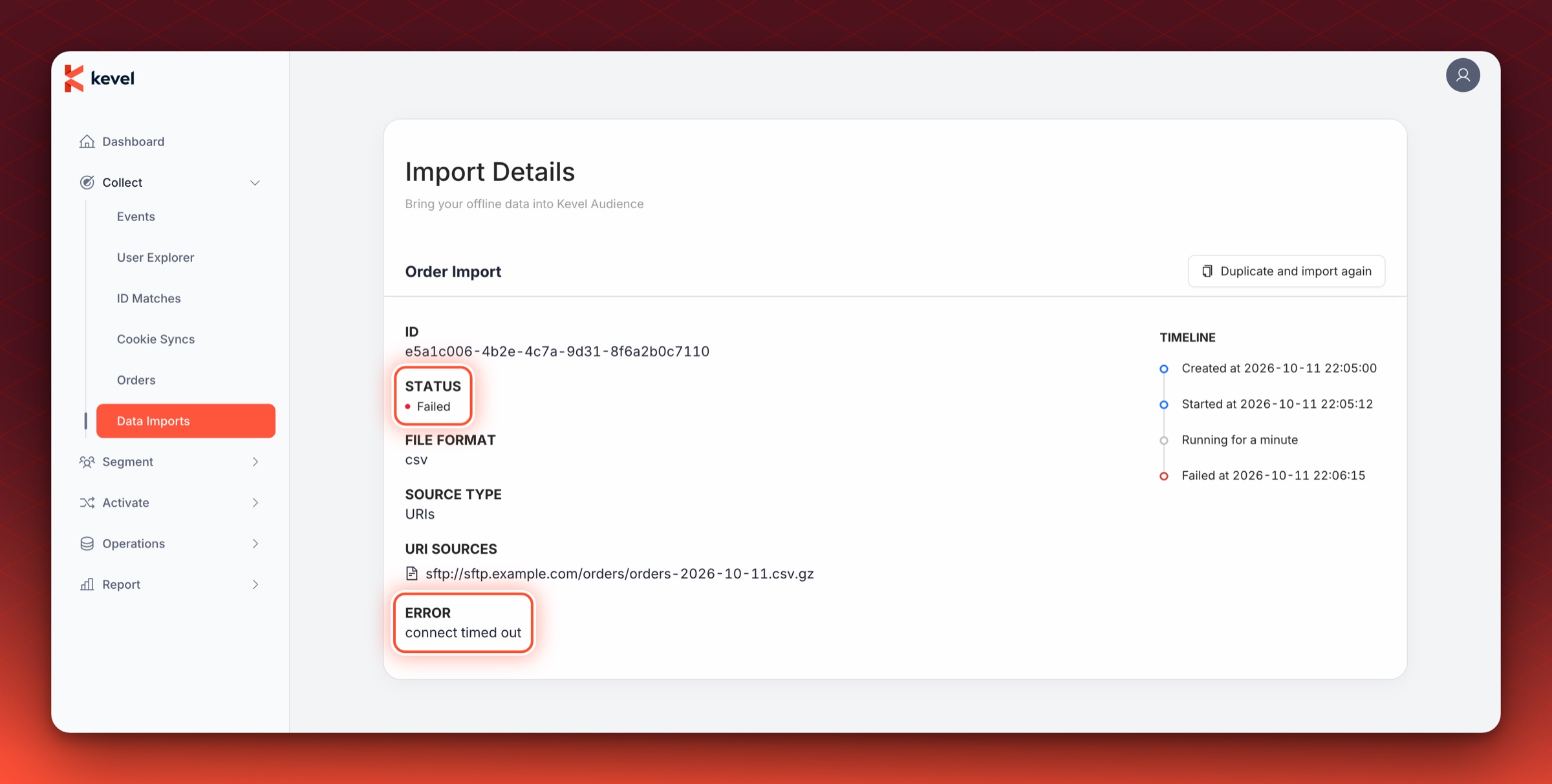
The details refresh automatically while the page is open. From the page you can:
- Cancel a job that is queued or running, after a confirmation.
- Open the new import form with the configuration of any job, for example to correct a source or to run the import again.
- Save the results and issues of a completed job as a report.
- Start the actual import from a completed dry run, with the same configuration. If the dry run found errors, you are told how many entries will not be imported.
Canceling a job started by an automated import does not stop the automated import. Its next trigger creates a new job, and files that were not completed by the canceled job are included in it.
Warnings and Results
A completed job shows its warnings and issues next to its result. The image below shows a completed import with two warning banners and an expanded row in the Import issues table.
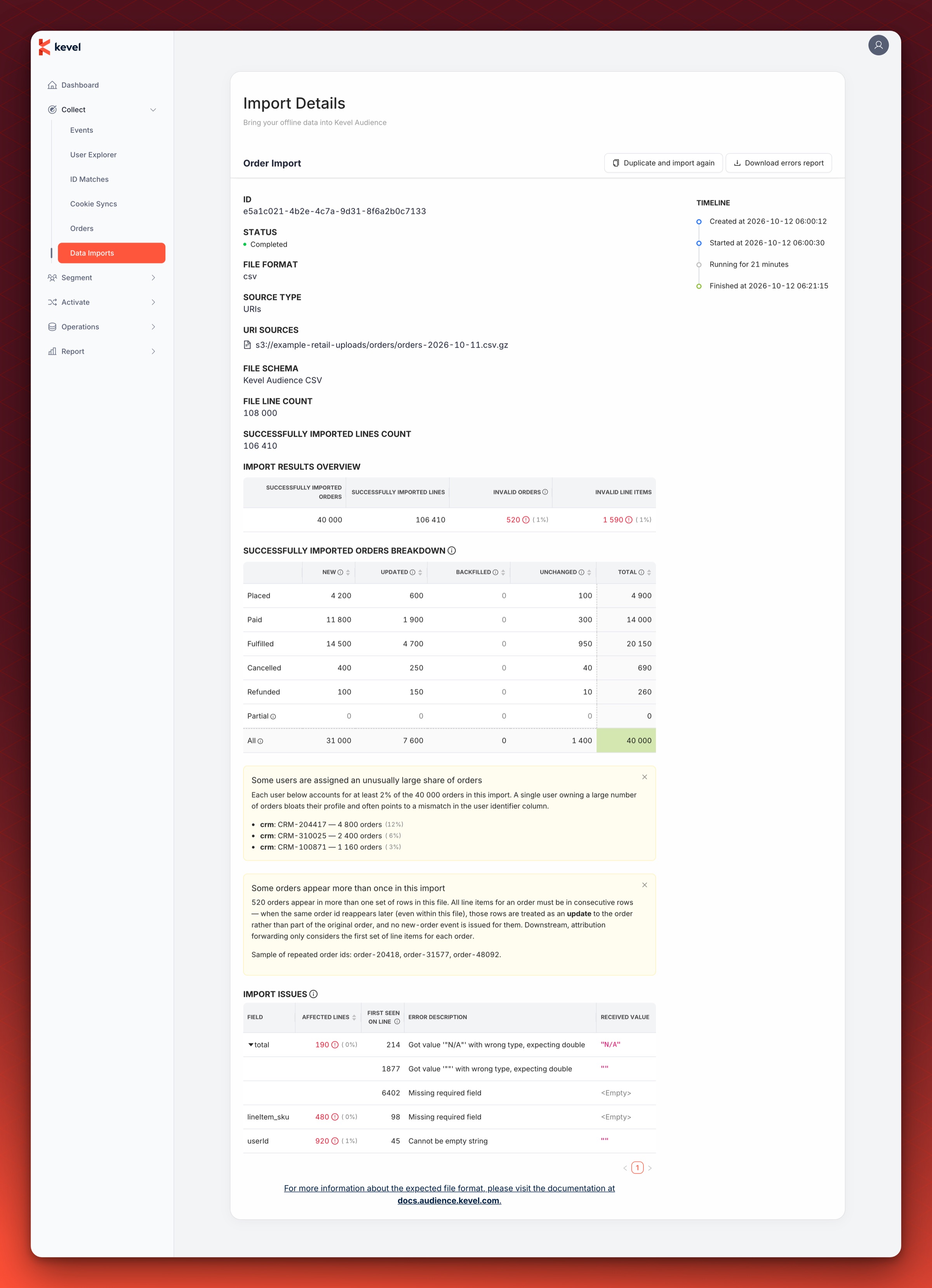
- Banners. A message about the import as a whole, for example that a few users account for an unusually large share of the orders. For order imports, see Troubleshooting.
- Import issues. This table groups the problems found by field. It shows how many lines are affected, the first line where the issue was seen, a description and the received value. A field with more than one distinct issue can be expanded.
For the results specific to an import type, see the page for that type: orders, users, products and segments.
Troubleshooting
An Import Completes with 0 Lines
A folder import that completes with 0 lines found no file to import. The details of the job show the number of files selected for each folder, and the usual causes are listed below.
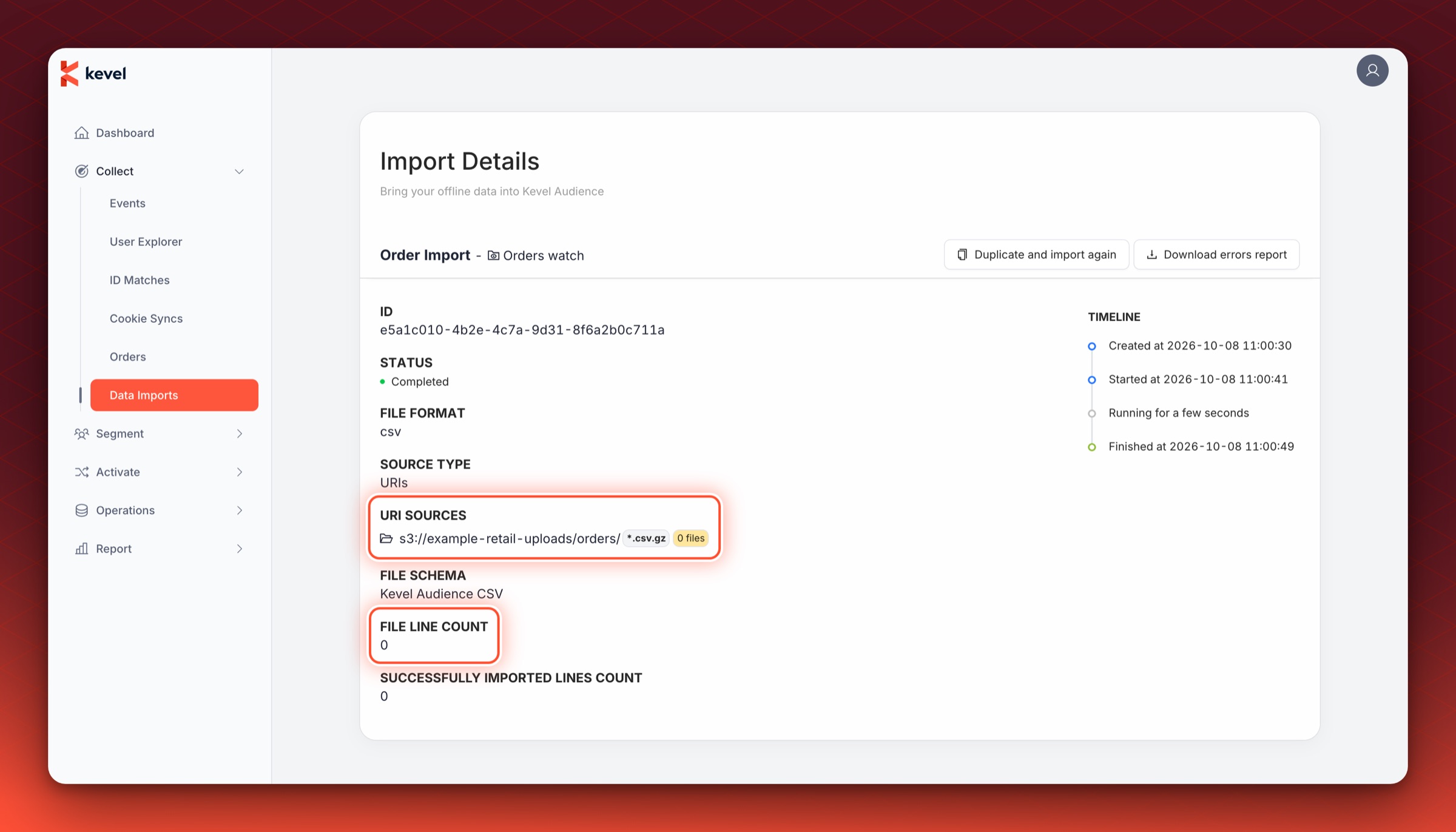
- The import is a scheduled import, and every file in the folder was already imported by an earlier run of that import. A file detection import is created only when a check finds a new file.
- The files are older than 30 days. The age comes from the last modified time of the file. The date in the file name is ignored.
- The file extension entered for the folder does not match the end of the file names. For example,
.csvdoes not matchorders.csv.gz. - The files are in a subfolder of the folder.
See the folder restrictions for the limits.
An Import Stays Queued
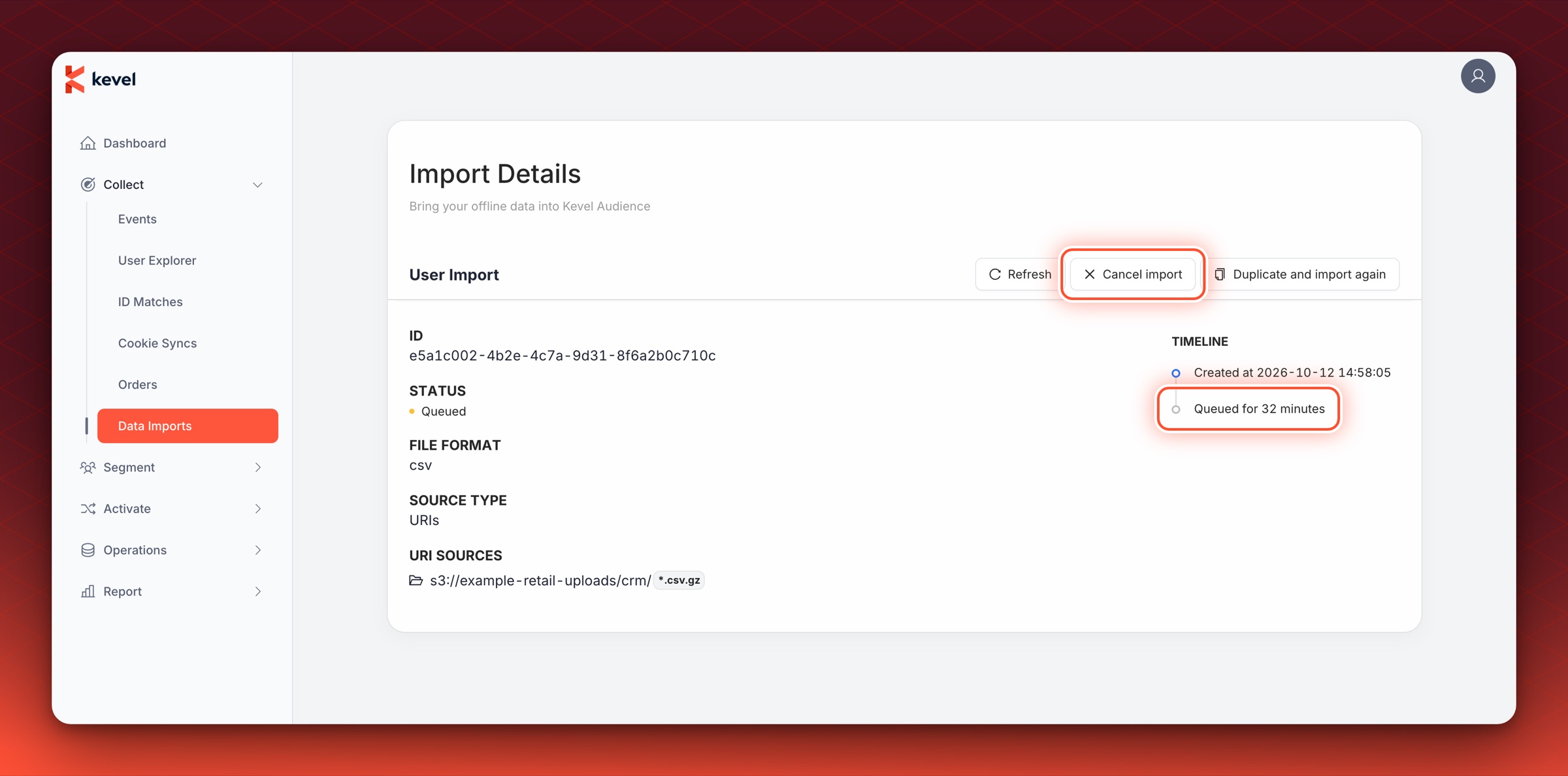
A job stays queued while another import is running, and a large import can delay the jobs behind it. The Timeline on the details page shows how long it has waited, and a job that is no longer needed can be canceled.
An Automated Import Never Runs
A file detection import has no last job run date until its first run finishes.
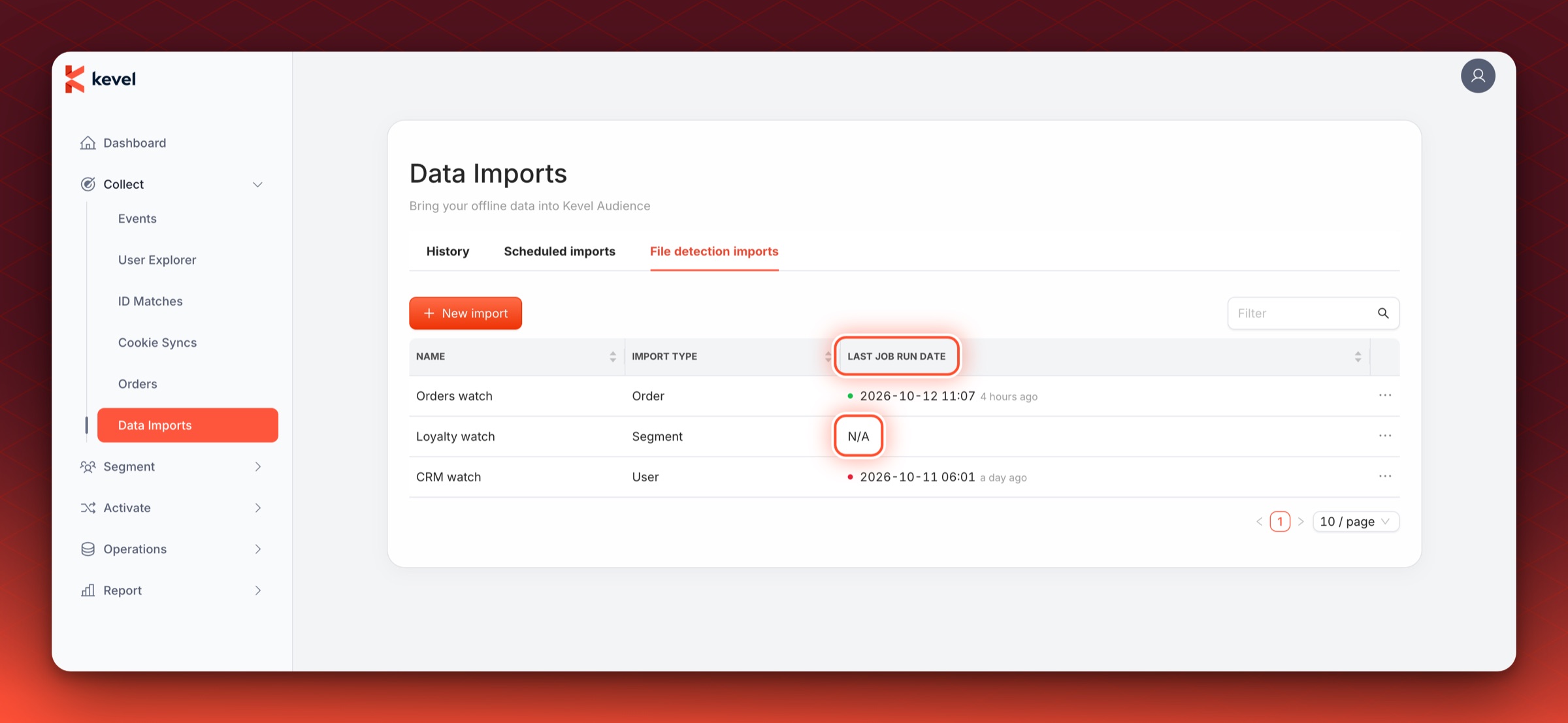
If it has not run when new files are expected, check the following.
- The new files meet the rules for folder sources.
- The previous job of the same import is still queued or running. New files are picked up by a later check once it finishes.
- Audience can read the folder. When access to a bucket or server is not set up, no import is created and no error is shown in the dashboard. Access to sources that Kevel does not provide is set up with Kevel Support. See Accessing External Data Sources.
- For an SFTP folder, the URI uses the hostname Kevel Support configured.
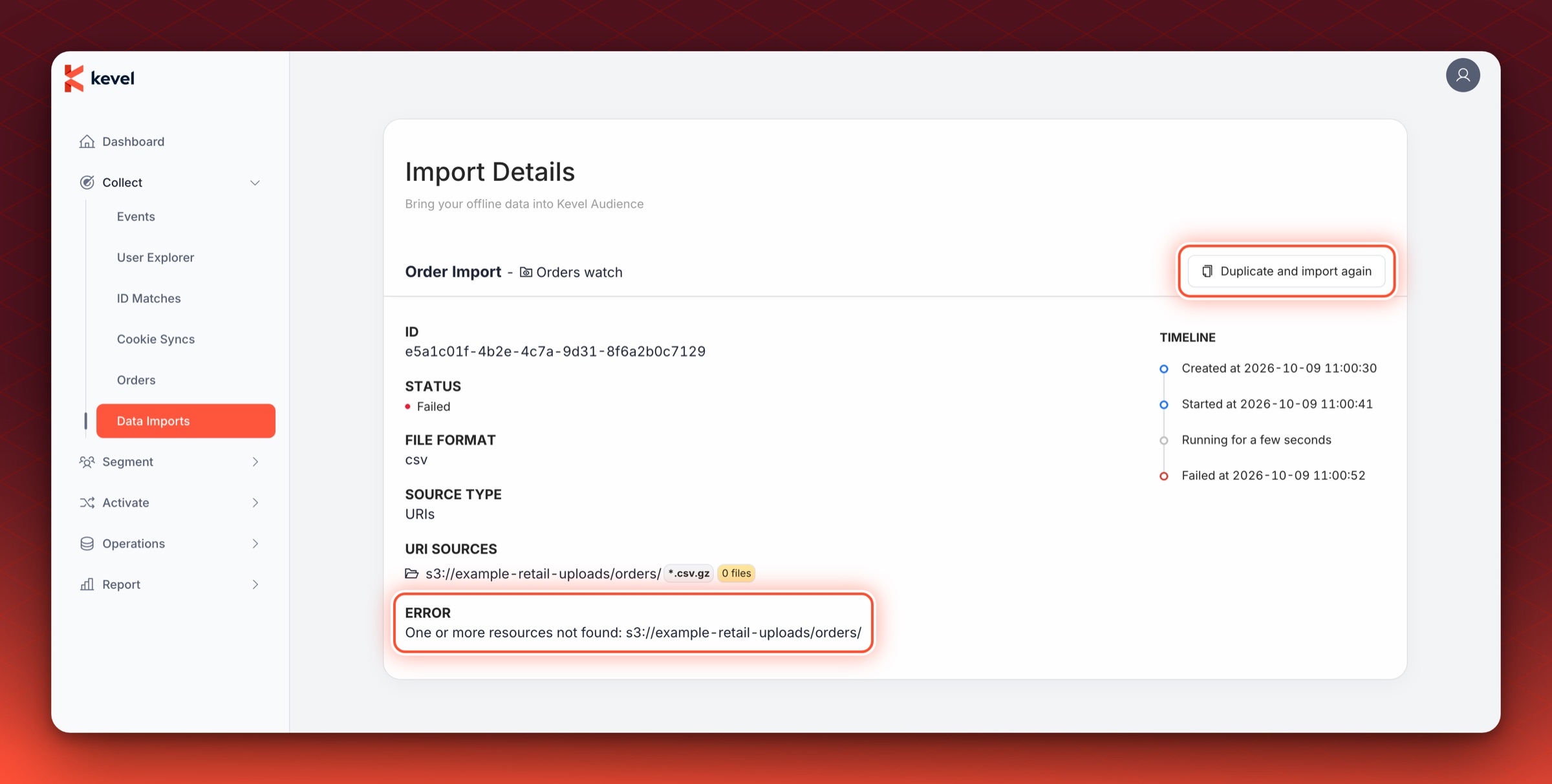
An Import Fails with Resources Not Found
A failed import that shows the error One or more resources not found followed by a URI means that the folder or file in the source URI could not be found. For s3 folders it also appears when the folder has no files in it at all, whatever their extension. Check the path in the source URI and confirm that the folder or file exists at that location.
Duplicate the import to open the form with the same configuration, and correct the URI there.