Segments
Import user segments that were built outside Kevel Audience — in a CDP, a data warehouse, or any other internal system — and activate them through Kevel Audience without rebuilding the segmentation logic here.
Each imported file represents the complete membership of a single segment. Every time the file is imported, the segment's membership is fully replaced with the users listed in the file, so the segment always mirrors its source system. This lets Kevel Audience act purely as an activation layer for segments whose source of truth lives elsewhere.
- Keep segmentation logic in a CDP, data warehouse, or internal system and use Kevel Audience purely to activate the resulting audiences.
- Synchronize a segment with an external source of truth on a schedule, or as soon as a new file is available.
- Upload an ad hoc list of users as a ready-to-target segment.
Segment membership is matched by the exact user ID and type in the file, see Identity Matching. For the segment to reach real users, use identifiers that already exist in Kevel Audience.
How Segment Imports Work
A segment import does three things in a single step:
- Creates the segment in Kevel Audience (or updates it, if a segment with the same name already exists in the selected destination) using the name, description, and category taken from the file or the import form.
- Sets the segment's membership to exactly the users listed in the file, fully replacing any previous membership.
- Activates the segment to the Kevel Native Segments destination(s) chosen for the import, making it available for targeting in the Kevel Ad Server.
Once activated, an imported segment is targetable just like a segment built in Kevel Audience: it can be used for targeting in the Kevel Ad Server and, when marked as static, is made available to Forecast.
In the Kevel Audience dashboard, an imported segment is managed entirely through the import, so it behaves differently from a segment built with the Segment Builder: it is not shown in the Segments list, and its details and membership cannot be edited by hand. To change them, update the source file and import the segment again.
The only place an imported segment surfaces in the dashboard is the Segment Activation panel of its Kevel Native Segments destination, where it appears among the already-activated segments. The only actions available there are removing it from the destination, which can then only be undone by importing the segment again, and toggling its static flag (when the destination's network has Forecast enabled).
Setting up the Import
Create a new import from Collect > Data Imports (see the Import Guide) and choose the External segments type. On top of the common import settings (sources, schedule, encoding, and so on) segment imports add a Segment Definition step and an Activation step.
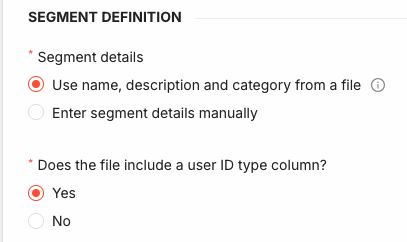
Segment Details
Choose where the segment's name, description, and category come from:
- Use name, description and category from a file: the segment details are read from the first row of the file (see File Format). Use this option for automated imports, where each file fully describes its own segment.
- Enter segment details manually: type the segment Name, Description, and Category directly in the form. In this case the file contains only user identifiers. Manually entered details are available for one-time uploads only.
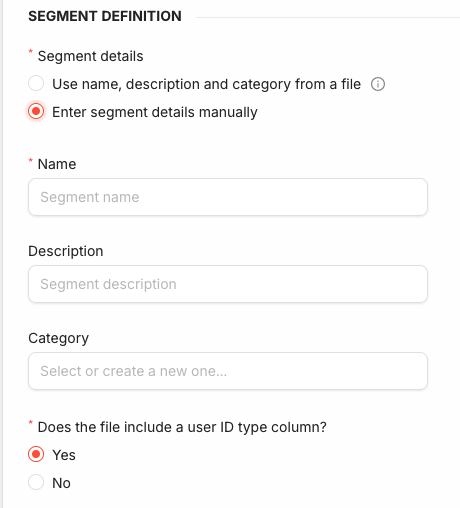
User ID Type
The import also needs to know which User ID type the identifiers in the file belong to. Answer Does the file include a user ID type column?:
- Yes: each row in the file carries its own user ID type, so a single file can mix identifiers of different types.
- No: pick a single User ID type in the form. It is applied to every identifier in the file.
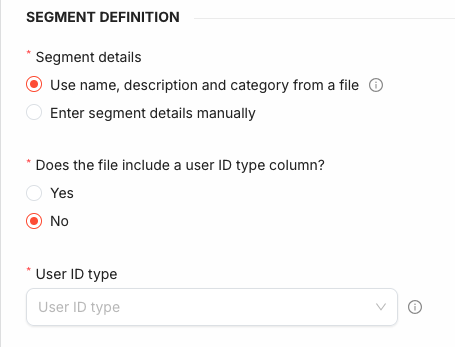
The user ID type is never inferred from the values themselves: it must either be present in the file or selected in the form.
Activation
Select one or more destinations to activate the segment to. Only Kevel Native Segments destinations are eligible, and they must already exist — create the destination first under Activate > Destinations if needed.
The same segment name imported to two different destinations produces two independent segments: an import targeting one destination never affects a same-named segment in another.
File Format
Segment imports support CSV files only. Columns are matched by name, so the header row must use the exact, case-sensitive names below; column order does not matter.
| Column | Required | Description |
|---|---|---|
userId | On user rows | A user identifier. |
userIdType | See User ID Type | The type of the identifier in userId. Include this column only when the import reads the user ID type from the file. |
segmentName | On the segment row | The segment name (up to 200 characters). |
segmentCategory | Optional | The segment category (up to 20 characters; cannot start with "Kevel"). |
segmentDescription | Optional | The segment description (up to 500 characters). |
isStatic | Optional | true or false (defaults to false). Marks the segment as static. |
When the segment details come from the file, the file is made up of two kinds of rows:
- One segment row, which must be the first data row. It carries the
segmentNameand, optionally,segmentCategory,segmentDescription, andisStatic, while itsuserIdanduserIdTypecells are left empty. - User rows, one per segment member. Each carries a
userId(and auserIdTypewhen that column is present), while its segment cells are left empty.
userId,userIdType,segmentName,segmentCategory,segmentDescription,isStatic
,,Core Customers,Loyalty,Top 20% revenue customers,true
user1@example.com,email,,,,
user2@example.com,email,,,,
crm_12345,crm,,,,
When the user ID type is selected in the form instead, omit the userIdType column:
userId,segmentName,segmentCategory,segmentDescription,isStatic
,Core Customers,Loyalty,Top 20% revenue customers,true
user1@example.com,,,,
user2@example.com,,,,
And when the segment details are entered manually in the form, the file contains only the user identifiers:
userId,userIdType
user1@example.com,email
user2@example.com,email
While configuring the import, use the File example link to download a template that matches the options selected, pre-filled with the right columns.
Standard import features such as file and folder sources, encodings, data transformations, and dry runs apply to segment imports as well.
Full Replacement
Each import replaces the segment's membership in full. On every run, the users that were members from the previous import of that segment are removed, and the users listed in the current file become the new membership. There are no incremental updates — the file is always the complete, authoritative membership.
A few consequences are worth noting:
- Empty membership: A file that defines the segment but lists no users (only the segment row) is valid: the segment's details are still applied and all previous members are removed, leaving an empty segment.
- Re-importing: Re-importing a segment replaces both its membership and any of its details (name, description, category, and static flag) with whatever the new import specifies.
- Removed files (automated imports): If a file that was previously imported is removed from a watched folder, nothing happens: the existing segment is left untouched. Segments are never deleted automatically.
Identity Matching
Each user row adds its identifier to the segment. Identifiers are matched by their exact user ID type and value, and are never matched across types. An identifier only ever resolves to the user that holds that exact ID and type.
Rows whose identifier is not valid for the chosen user ID type are skipped, and the import results report them among the issues. For the segment to target reachable users, make sure the identifiers and types in the file match the ones already present in Kevel Audience, for example, from events or user imports.
Static Segments
Marking a segment as static through the isStatic column, or the per-segment static setting in the
Kevel Native Segments destination, indicates that its
membership is stable over time, for example "users who signed up in 2021". Static segments are sent directly to
Forecast and made available for predictions immediately upon activation.
Segments whose details are entered manually in the form are always treated as dynamic. To mark an imported segment as
static, provide its details in the file with isStatic set to true.
Import Results
A completed segment import opens on the Segment Import details page.
The overview shows the import's configuration and status, the total number of lines in the file (Line count) and how many were successfully processed (Successfully imported lines count), and the Segments count: usually one, or more for folder imports that process several files.
The Segments activated section breaks down, per destination, what happened to each segment:
| Column | Description |
|---|---|
| Name / Description / Category | The segment details that were applied. |
| Static | Whether the segment is static. |
| Segment Action | What happened to the segment for that destination: Created, Updated, Unchanged, or Error. |
| Added users | How many users were added to the segment. |
| Removed users | How many previous members were removed. |
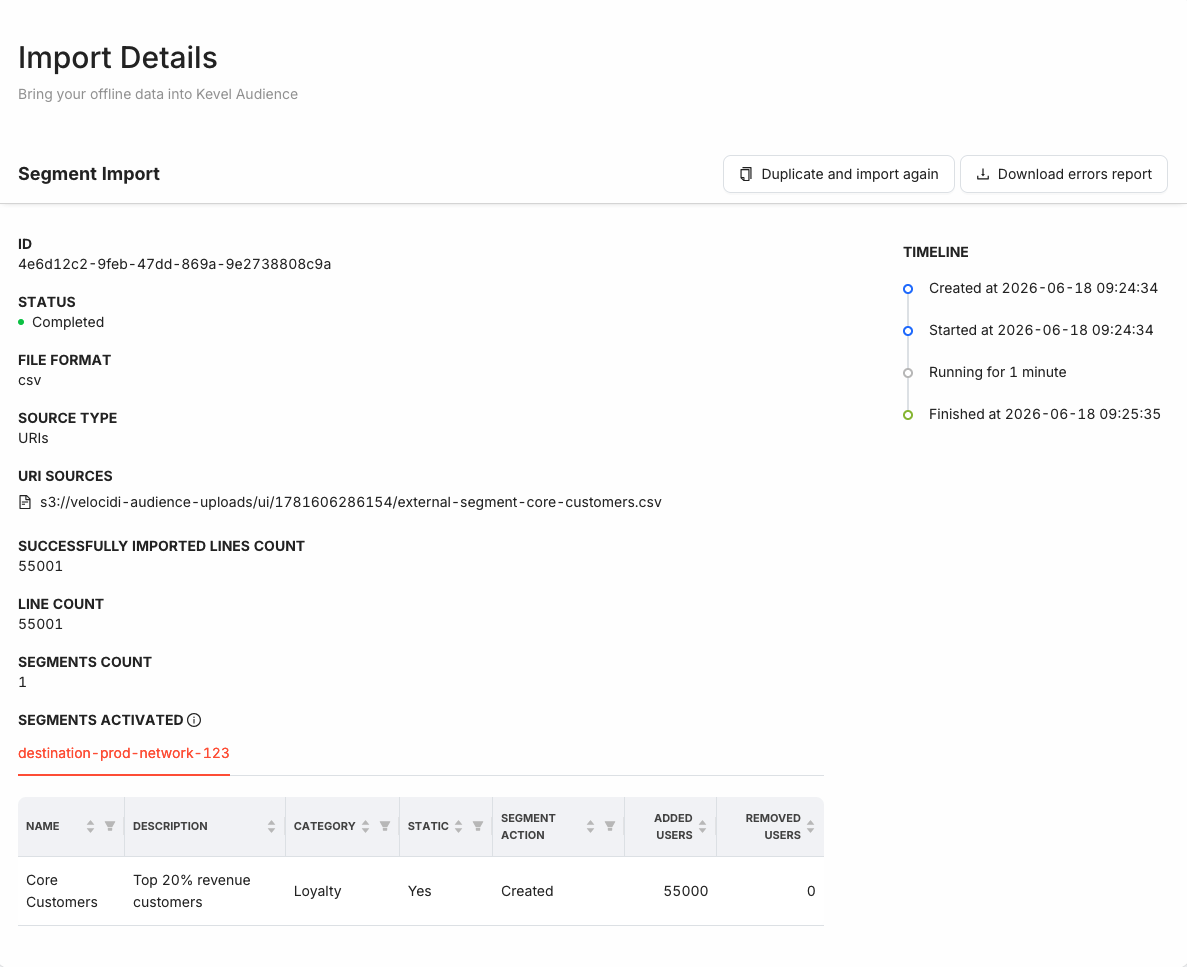
If the details of a segment are rejected, for instance because of an invalid name or description, no users are added to or removed from that segment, and the segment is neither created nor updated. Invalid user rows are skipped, and the segment is still created or updated with the valid users.
As with other imports, a dry run reports these same results without applying any changes.
Automated Imports
Segment imports can run automatically, either on a schedule or whenever a new file is detected in a watched folder. Automated segment imports always read the segment details from the file, so that each file fully describes the segment it represents.
When a folder import picks up several files in a single run, each file is imported as its own segment, and the files are processed in alphabetical order by file name, with only the files not already imported on a previous run being considered. Because each import fully replaces the membership of the segment it targets, when two files resolve to the same segment the last one processed wins, so naming files such that their alphabetical order matches the intended order, for example by prefixing them with a timestamp, keeps the outcome predictable.